A Custom Visual Morph Control System for iClone 8 & Character Creator 5
Visual Morph Controller is a customizable visual interface for controlling character morphs and facial expressions directly inside Reallusion iClone 8 and Character Creator 5.
Instead of working through long lists of morph sliders, you can build your own visual control layout using buttons positioned over a custom character control sheet, facial reference, or any other background image.
Create your own control panels, assign morphs to intuitive drag areas, organize different setups into profiles, and control multiple morphs from a single visual interface.
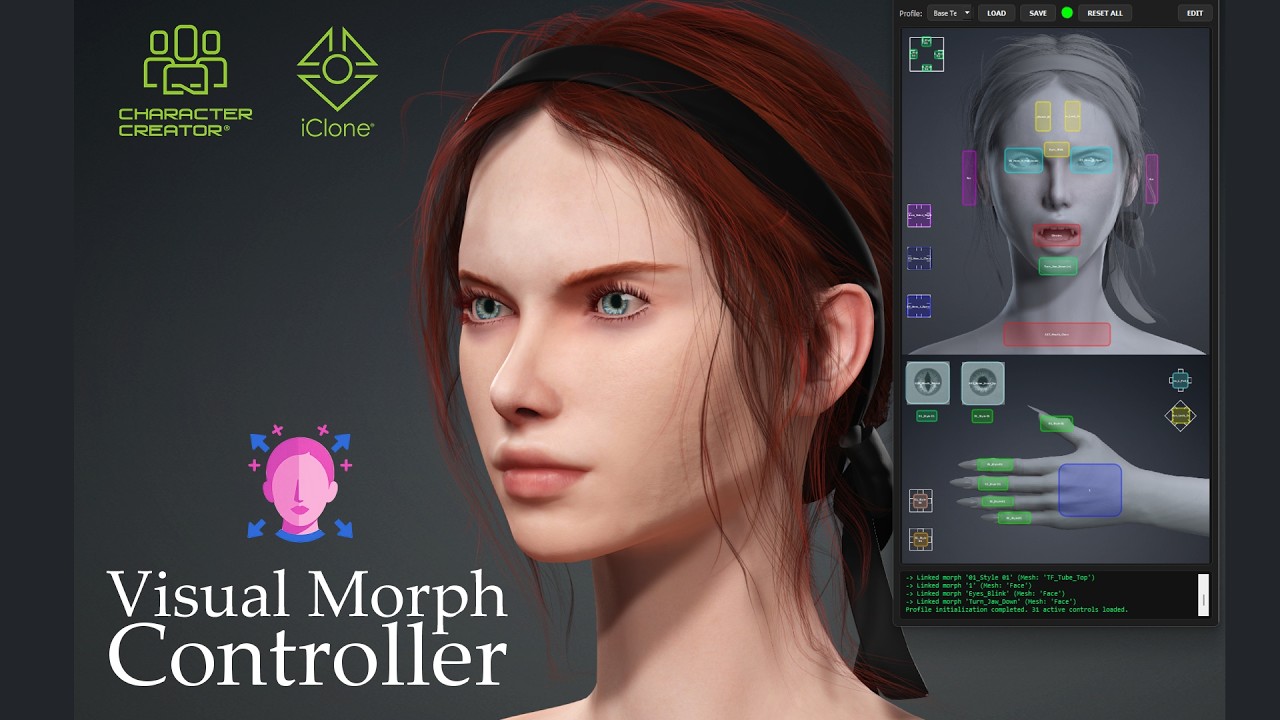
Click the image above to watch the full demonstration of Visual Morph Controller in action. Buy Visual Morph Controller
Traditional morph workflows often require searching through large lists of morph targets and repeatedly adjusting individual sliders.
Visual Morph Controller provides a more direct workflow:
Choose a visual reference → place controls → assign morphs → drag to pose or shape the character.
This makes it particularly useful for:
- Facial expression workflows
- Character posing and customization
- Facial animation
- Blendshape experimentation
- Character design
- Morph-heavy character pipelines
- Custom character control rigs
- Reusable artist-specific control layouts
The interface is completely customizable, allowing the control panel to be adapted to different characters, morph libraries, and production workflows.
Create interactive controls directly on a visual canvas.
Each control can be linked to a morph target or facial expression and manipulated directly with the mouse.
Controls support:
- Custom position
- Custom width and height
- Custom color
- Multiple visual shapes
- Direct mouse interaction
- Real-time morph manipulation
Supported control shapes include:
- Square
- Circle
- Rounded Square
A single control can drive up to four different morph targets:
- UP
- DOWN
- LEFT
- RIGHT
This allows you to create intuitive 2D control areas instead of relying exclusively on traditional one-dimensional sliders.
For example, a single control can combine:
- Smile / Frown
- Eye Open / Eye Close
- Head Tilt Left / Right
- Facial or body shape combinations
When opposite directions are assigned, the controller automatically manages the active side of the pair and keeps the opposing morph at zero.
This makes a single visual control capable of representing a two-dimensional morph space.
Visual Morph Controller searches the active character for available morph targets and facial expressions.
Morphs can be resolved from:
- Character mesh morphs
- Facial expression groups
- Facial expressions available through the character's Face Component
This allows the same interface to be used for both general mesh morphs and facial controls.
While manipulating a control, the current morph value is displayed next to the mouse cursor.
For two-axis controls, the interface displays both values:
H: 0.75 | V: 0.42
This provides immediate visual feedback while editing expressions or character shapes.
The control canvas can use a custom background image.
This makes it possible to build interfaces around:
- Facial control sheets
- Character turnaround references
- Custom rig diagrams
- Expression charts
- Artist-specific layouts
- Production-specific control panels
The controls can be positioned directly over the relevant areas of the reference image.
Visual Morph Controller includes a multi-profile system for storing different control layouts.
You can:
- Create profiles
- Delete profiles
- Rename profiles
- Switch between profiles
- Save different morph-control configurations
This makes it possible to maintain different layouts for different characters or workflows.
For example:
Default
Face Controls
Body Controls
Expressions
Character A
Character B
Animation Setup
Each profile can have its own controls, background image, and text elements.
The built-in EDIT mode allows the control interface itself to be customized without manually editing the configuration files.
Available editing tools include:
Create a new interactive morph control on the canvas.
Remove an existing control.
Customize the appearance of individual controls.
Replace the morph assigned to an existing control.
Directly reposition and resize controls on the canvas.
This makes it possible to visually construct an entire control interface inside the plugin.
Layouts can also contain custom text elements.
Text labels can be:
- Added
- Moved
- Edited
- Resized
- Recolored
- Deleted
This allows you to organize complex control sheets directly inside the plugin.
For example:
        EYES

LEFT                RIGHT

        MOUTH

SMILE               FROWN

        JAW
Text elements are stored as part of the profile configuration.
Each profile can use its own background image.
This allows the controller to be designed around an existing visual reference.
A typical workflow could be:
- Create or import a facial control sheet.
- Set it as the profile background.
- Add morph controls over the relevant areas.
- Assign morphs to each control.
- Save the profile.
The result is a custom visual morph interface tailored to your character.
If a control references a morph that is not available on the current character, Visual Morph Controller can display it as a placeholder.
The morph can then be replaced by selecting another available morph from the character.
This is particularly useful when reusing a control layout across characters with different morph libraries.
The replacement workflow can also assign additional directional morphs to the same control.
When changing characters or switching to a different character setup, use the Reconnect control to refresh the connection between the interface and the active character.
This refreshes the available morph targets and rebuilds the active controls.
This is important when reusing the same control layout with another character.
The RESET ALL command provides a fast way to return the mapped morphs in the active profile to zero.
Instead of manually resetting individual controls, all mapped morph references are processed and returned to:
0.0
This is especially useful when experimenting with complex combinations of facial or body morphs.
Control layouts are stored in JSON configuration files.
The configuration system supports:
- Multiple profiles
- Background images
- Button positions
- Button dimensions
- Button colors
- Button shapes
- Morph assignments
- Four-direction morph assignments
- Text elements
- Text formatting
- Active profile selection
Existing JSON configurations are also handled with backward-compatible loading for older list-based configurations.
You can load a different JSON configuration through the LOAD button.
The main interface provides direct access to the most important operations:
| Control | Function |
|---|---|
| Profile | Select the active control layout |
| LOAD | Load a JSON configuration |
| SAVE | Save the current configuration |
| RECONNECT | Refresh the connection with the active character |
| RESET ALL | Reset mapped morphs to zero |
| EDIT | Enter layout editing mode |
When EDIT mode is enabled, the editing toolbar provides the layout and text editing tools.
Open your character in iClone 8 or Character Creator 5.
Go to:
Plugins → Morph Controller → Open Morph Controller
Choose an existing profile or create a new one.
Use a custom control sheet or reference image as the profile background.
Enable EDIT and begin creating your control layout.
Create buttons and position them over the appropriate areas of your reference.
Select the desired mesh morph or facial expression.
For more advanced controls, assign separate morphs for:
UP
DOWN
LEFT
RIGHT
Add text elements to organize and identify your controls.
Save the configuration and reuse it whenever needed.
Visual Morph Controller uses Reallusion's OpenPlugin system and is installed manually.
You need at least one of the following:
- iClone 8
- Character Creator 5
You do not need to have both applications installed.
Copy the MorphController folder to:
C:\Program Files\Reallusion\iClone 8\Bin64\OpenPlugin\
Copy the MorphController folder to:
C:\Program Files\Reallusion\Character Creator 5\Bin64\OpenPlugin\
If the OpenPlugin folder does not exist, create it manually.
After copying the files, restart the Reallusion application.
Then open:
Plugins → Morph Controller → Open Morph Controller
Administrative privileges may be required when copying files into the Reallusion program directory.
| Application | Support |
|---|---|
| iClone 8 | ✅ Supported |
| Character Creator 5 | ✅ Supported |
The plugin works independently in either application.
Make sure a character is currently loaded in the 3D viewport.
The plugin needs an active character in order to resolve its morph targets and facial expressions.
Click the green Reconnect button.
This refreshes the connection with the current character and rebuilds the available morph references.
Keep the plugin's original folder structure intact.
Background images referenced by a profile must remain available at their configured paths.
Moving or deleting referenced images can cause layouts to appear without their background.
Visual Morph Controller is implemented as a Python-based Reallusion plugin using the Reallusion API and Qt-based UI components.
The plugin does not require:
- Online activation
- License keys
- A separate activation service
The distributed package uses manual file installation rather than automatic installation through Reallusion Hub.
Watch Visual Morph Controller in action:
YouTube Demo — Visual Morph Controller
The video demonstrates the visual morph-control workflow and the customizable interface.
Visual Morph Controller is available through the Reallusion Marketplace.
The Marketplace page contains the commercial release and product information.
Visual Morph Controller is designed for artists who need faster and more visual control over character morphs.
Particularly useful for:
- Character Artists
- Facial Artists
- Character Designers
- Animators
- Facial Animation
- Character Customization
- Blendshape Workflows
- Previs
- Look Development
- Custom Character Pipelines
Visual Morph Controller
Created by Tijerin Art Studio
Designed for:
- Reallusion iClone 8
- Reallusion Character Creator 5
If you encounter a problem, make sure that:
- A compatible Reallusion application is installed.
- A character is loaded in the viewport.
- The plugin folder is installed in the correct
OpenPlugindirectory. - The required profile/background files have not been moved.
- The Reconnect button has been pressed after changing characters.
Visual Morph Controller — Build your own visual interface for character morph control.